Prepare a campaign video for vertical and widescreen delivery
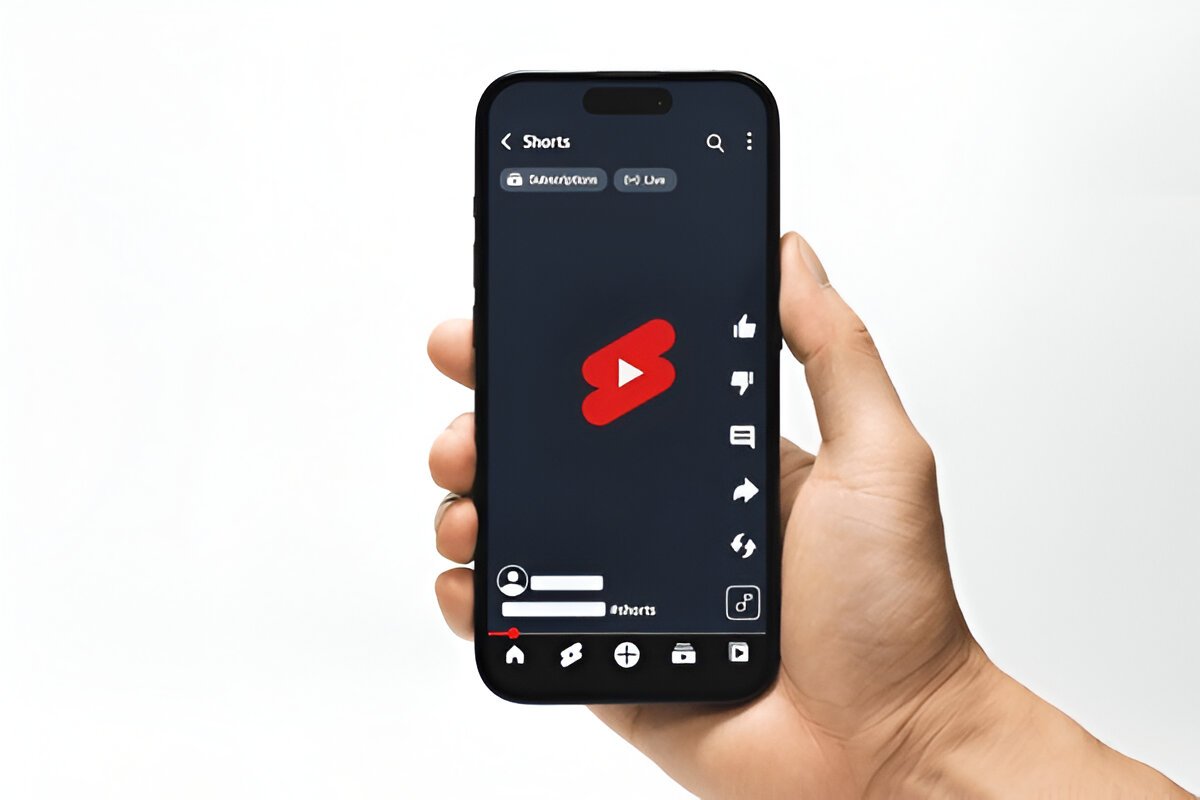
Table of Contents
Create a separate version for each required frame, then check the actual exported files. A widescreen interview and a vertical social cut can use the same recording, but they need different decisions about composition, captions and the opening seconds. Changing the canvas is only the start of that work.
Before editing, write down the destination, frame shape, required duration, language and approval owner for each deliverable. A client review file and a public social video may have different requirements. Keep the approved edit intact so a request for another format does not erase the version everyone already signed off.
Recompose the vertical version around the subject
For a team working in CapCut, preserve a working copy before changing the project frame. CapCut Guide’s editing tutorials distinguish project settings from controls that affect only one clip. That distinction matters when a landscape interview needs to become a vertical film: cropping a selected clip does not, by itself, set the whole project’s shape.
Choose the canvas ratio for the destination. For example, 9:16 is a common full-screen vertical frame and 16:9 is a widescreen frame. These describe proportions, not a guaranteed pixel size. CapCut’s own aspect-ratio instructions separate that choice from export resolution, frame rate, format and bitrate.
Now decide what the picture may lose. Filling a vertical frame from a landscape shot usually removes material at the sides. Check the speaker’s hands, a product demonstration and any text already recorded in the picture. If those edges matter, preserve the full image over a suitable background or choose another shot. Stretching the picture to fill the canvas changes its proportions.
Use a canvas and crop workflow that keeps those choices separate, then review the entire cut. A subject can leave the frame halfway through a shot. Captions, logos and position keyframes also need checking after the frame changes; a clean opening frame does not prove that the rest is ready.
Check the export job as carefully as the edit
If your team edits in DaVinci Resolve, make the deliverable from the appropriate timeline rather than assuming a social version must pass through another editor. The independent DaVinci Resolve Club covers editing and delivery workflows, including the difference between a quick review copy and a job that needs manual export controls.
Blackmagic’s editing overview points to File > Quick Export for a fast output and to Deliver for configurable export settings. Use the route that meets the brief. A preset name is a starting point; it does not replace the client’s required dimensions, audio layout or file format.
On Deliver, check the output location, selected range and audio source before adding the job. Adding it to the queue is not the same as rendering it. When you revise a queued job, make sure the queue contains the revised settings. This Resolve export checklist for ranges, audio and saved jobs explains that final handoff, including platform-dependent codec support.
Approve the files that will actually leave the folder
Open each finished file outside the editor. Compare it with the brief and use filenames that identify the platform and revision. For an important delivery, watch the complete file rather than relying only on a short test.
- Confirm the frame dimensions, duration and correct version of the edit.
- Read captions at their longest lines and inspect logos near the edges.
- Listen to the intended audio channels, including the first and last words.
- Check the file in the intended player or upload preview before final approval.
Record which file the reviewer approved. A later replacement with the same filename can otherwise make an old approval look as if it covers a different cut. Keep the approved exports and the editable project together until the campaign handoff is complete.
Like What You Read?
Have an Idea and Want to Build Something Together? Contact Us Now